

Client
Respire Client 2 is a Go desktop application built with Wails v3, targeting Windows, macOS and Linux. Windows amd64 has local interactive verification; non-Windows UI, tray, login integration and self-update still require native acceptance. Its embedded interface is separate from the hosted Dashboard. It connects to the local CLI Runtime over loopback RPC and uses restricted host actions for account changes, injection and credential configuration. It does not contain Core or model weights.
Download a matching application from client releases. The application downloads a matching CLI and native runtime separately, or connects to a compatible existing local Runtime. Desktop and CLI updates have independent Stable and Dev channels. A desktop build does not guarantee a matching CLI release; see platform support.
Pages and tray
| Page | Actions and conditions |
|---|---|
| Overview | View local and cloud counts, pending sync, conflicts, index, model tasks and Runtime status; sync and start or stop Runtime. |
| Memories | Browse tree, list, cards or graph; filter loaded entries or search the library; read, create, edit, move, merge, copy, delete, restore, share and inspect causal chains. The editor offers a three-part template and similar-memory search; candidates can be read and selected as parents, or deduplication can be explicitly bypassed. Tools include promotion, grant inspection, book, portrait and subtree materials, and permanent ciphertext purge. |
| Diary | Browse by month or day, search across dates and open fragments and neighbors. |
| Organize | Inspect grouping suggestions, similar entries and structural audit; generate, edit, copy, preview and apply a validated local move plan; preview suggestions individually or together. Configure a service to preview or execute AI organization by item limit, subtree or entire library. |
| Models & Index | Select download source, prepare or download weights, cancel Runtime model tasks or uninstall models; select an installed weight and engine, install NPU providers, probe inference, prepare or rebuild the index, configure recall, and run recall checks and a nine-round benchmark. Weights can be downloaded again; applying an engine reloads the model and verifies inference, falling back to CPU on failure. |
| Accounts & Spaces | Browser or password login, registration, recovery, super-password reset, offline initialization, key export and logout; switch accounts, inspect or migrate old accounts, configure server and sync, inspect conflicts, and create, join, switch or remove spaces and manage invitations and members. Password operations require a compatible CLI with account RPC; login accepts a two-step verification code. Revoke one member or all members. |
| Configure Agent | Select an instruction mode, detect targets, inject or remove instructions, and prepare or install host plugins. Changing instruction mode rewrites instructions for all enabled agents without changing plugins; disabling an agent removes its injected instructions but keeps its plugin. Some plugins require the host UI to finish installation. DSH instruction injection overwrites ~/.dsh/AGENTS.md and removes a symlink at that path; inspect and back up the target first. |
| Access Grants | Create, inspect and revoke read-only subtree grants, including inherited access. |
| Settings | Change theme, layout, language, login startup, automatic Runtime connection and updates, channels, work and diary modes, and data directory; import/export memories, back up the database, import shared material, and import/export client settings. |
| Updates | Configure automatic updates and check intervals separately for the client and Runtime. Check, download, cancel and apply client updates, or check and install or update the CLI. With automatic restart enabled, the client can restart after downloading when no business operation is running. |
| Operations | Inspect write status, request IDs and session receipts; query the original request when its result is unknown. Host-operation outcomes must be checked on their own page. |
| Diagnostics | Inspect connection and health, run the CLI doctor and export diagnostics. |
| Tray | The quick panel shows status and can sync or open the main window. The panel can be refreshed manually and refreshes when focused or shown again. Its menu can start or stop Runtime, check updates and quit the client while leaving Runtime running. |
The graph displays up to 300 nodes per page, with cross-page relationships, zoom, pan, node selection and dragging. Center the selected node with the control, or focus a node and press Enter or Space to open it. Directory filters apply only to loaded memories. Memory shortcuts include Ctrl/Command+K for search, Ctrl/Command+N for a new entry, Ctrl/Command+Z for eligible undo, Ctrl/Command+Shift+N to create a follow-up under the selected node, and Ctrl/Command+Shift+C for a node link. F2 edits, Delete or Backspace deletes, and arrow keys select, expand or collapse nodes. These shortcuts do not fire while a dialog is open or an input control is being edited. Undo retains one eligible operation, refuses a changed library and is not an atomic cross-client transaction.
Screen walkthrough
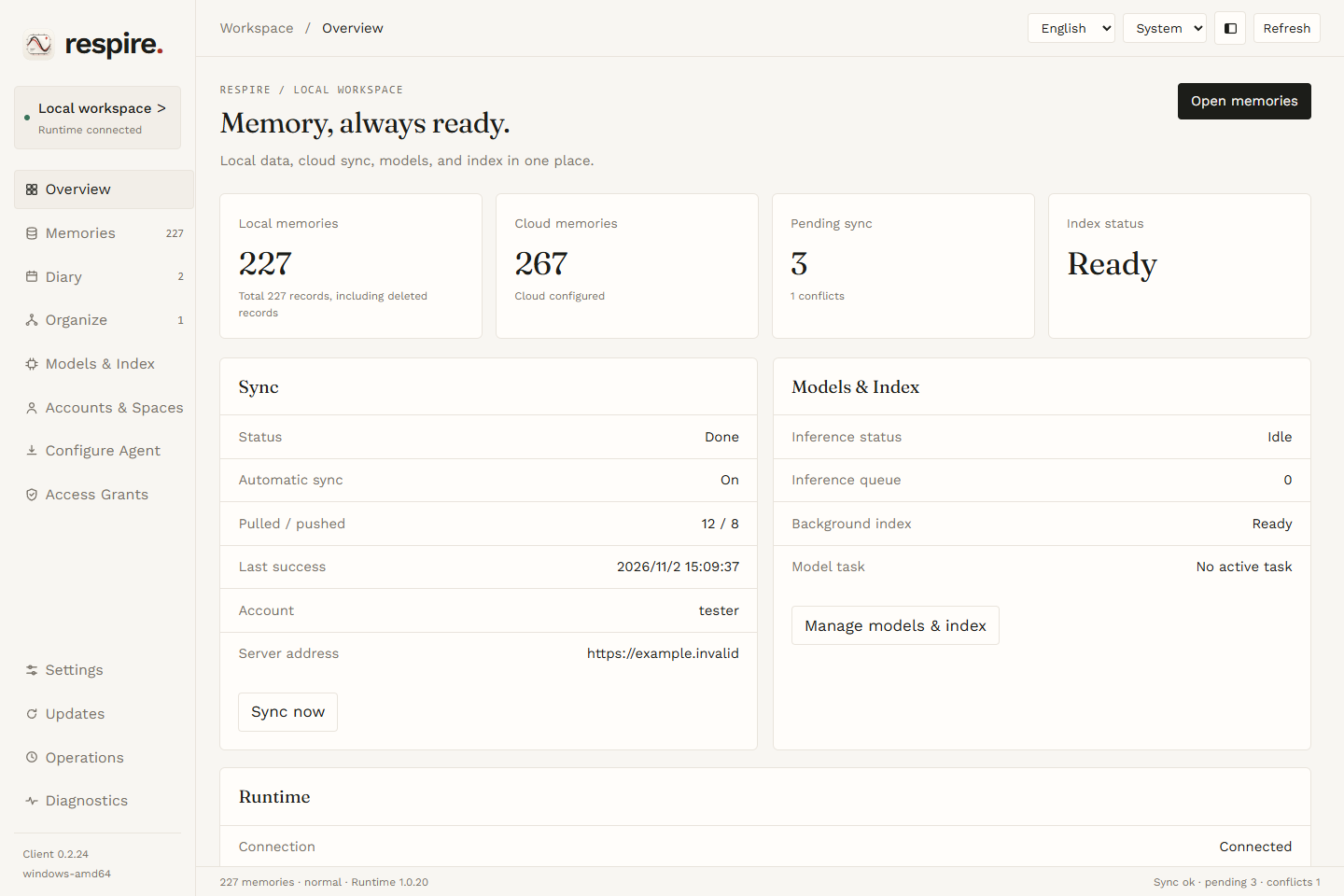
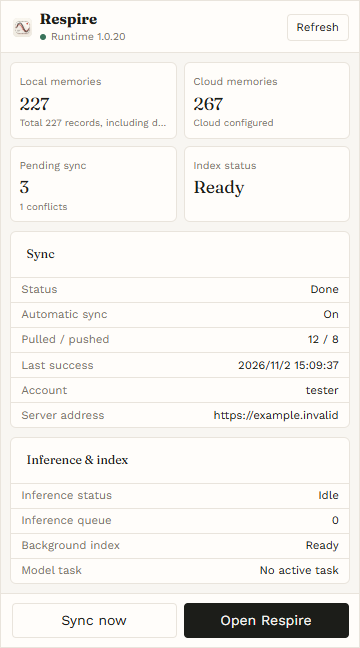
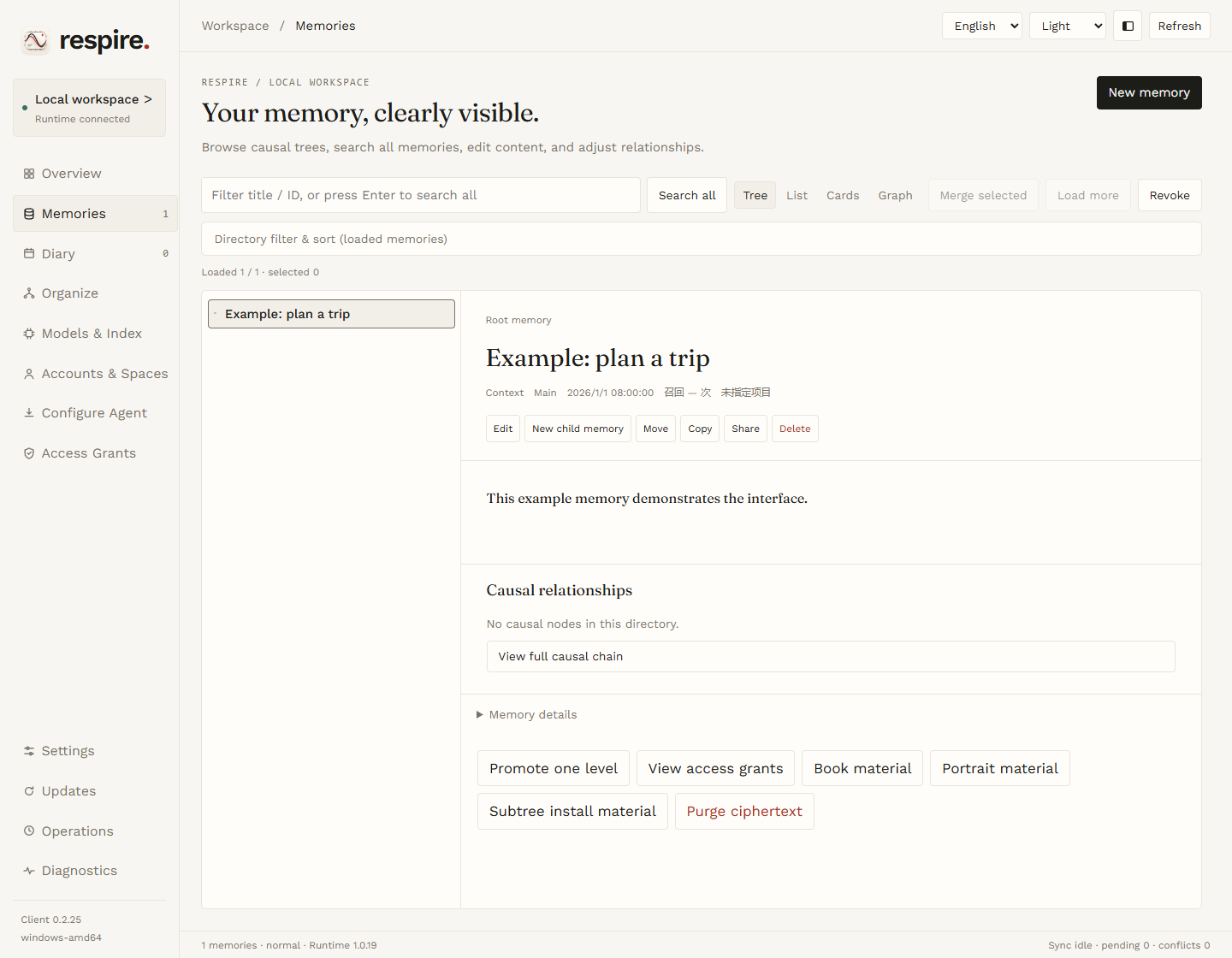
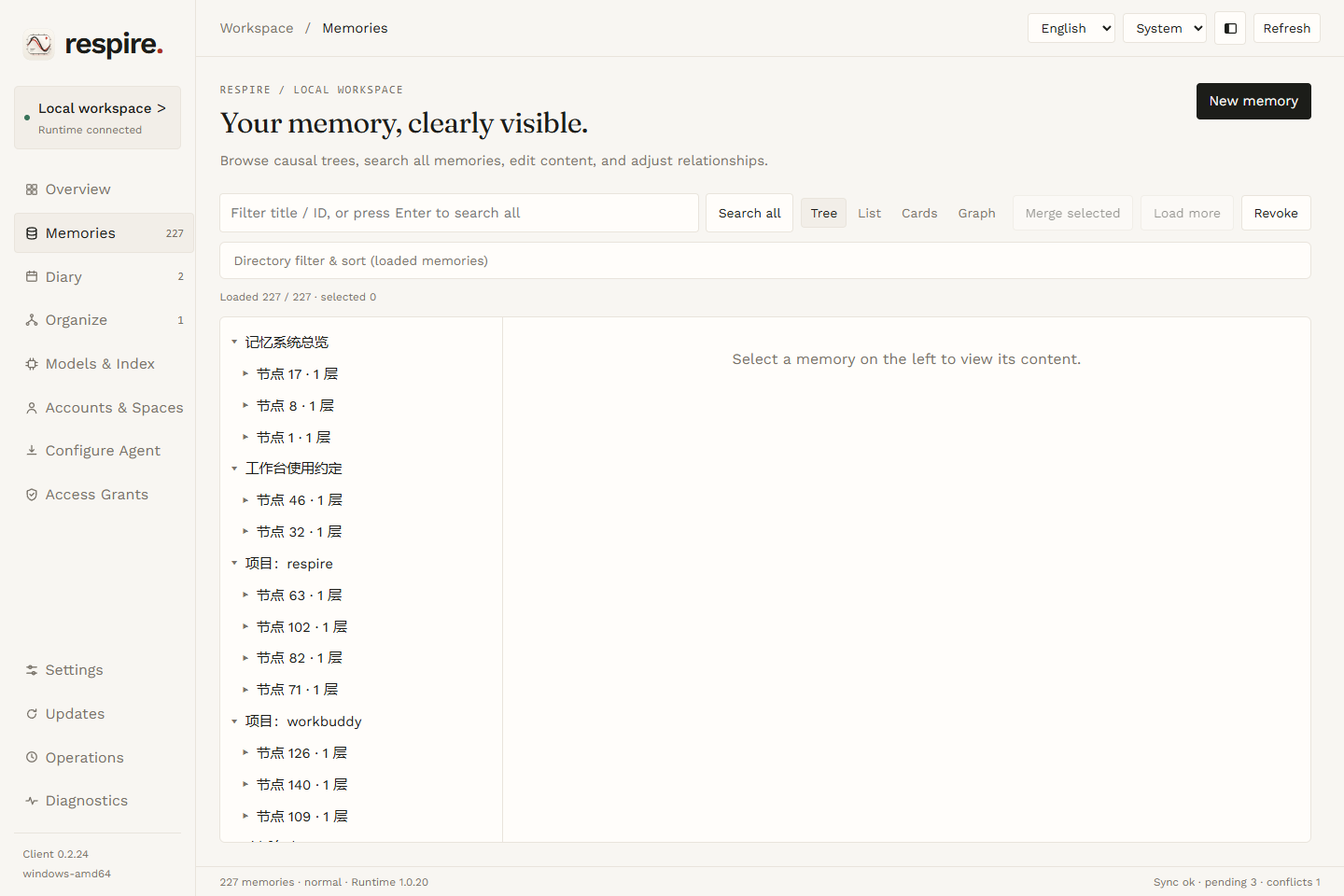
The page and tray screenshots show the Client 2 frontend running in a browser with simulated data. The Updates, memory reader, editor and merge screenshots are from 0.2.25; the others are from 0.2.24. Accounts, counts and task states are examples. These images illustrate the interface; they are not native acceptance results for each platform. Some interface text is still Chinese when English is selected.
Overview and tray
Use Overview to check the Runtime connection, local and cloud totals, pending sync and model activity. Select Sync now when a cloud account is configured. The counts and any conflicts depend on the active account and workspace.
During initial setup, Get started lists Runtime, account, local-key and agent configuration status. A local-only library does not require sign-in, so that item may remain incomplete. The key item checks for local keys; it does not confirm that recovery material has been backed up.
The tray quick panel provides the same status at a glance, plus Sync now and Open Respire. The tray menu also offers Runtime and update actions. Closing the window hides it; quitting the client does not stop the Runtime.
Memories and diary
In Memories, choose tree, list, cards or graph. Select an entry to read it, or choose New memory to write one. Directory filters work on loaded entries; use the library search to search beyond them. Inspect similar entries before choosing a parent, merging or proceeding without deduplication.
In tree and list views, click a title to open the entry, or click elsewhere on the row to select it. Hold Ctrl (Command on macOS) to select multiple entries, or Shift to select a visible range. Once multiple entries are selected, use Merge selected. Library search returns at most 50 results.
Directory filters include type, storage area, project and tags, with a sort control. Project and tag filters use exact matches. Use Load more when more entries are available; these filters apply only to loaded entries. When idle, the client attempts to reload the directory about every 30 seconds; displayed results depend on the read status.
With a Runtime that supports metadata lists, the client attempts to complete the memory directory, requesting up to 100,000 entries. In sidebar layout, drag the sidebar edge to adjust its width. On the memory page, drag the divider between the directory and reader; the divider is unavailable in graph view.
After a deletion, the current page offers Restore deleted memory. If that control is no longer available, use a compatible CLI with the original ID to restore the entry. Permanently purging ciphertext cannot be undone.
After selecting a memory and opening its content, use the tools below it. Promote one level moves the memory and its children under the next ancestor. Purge ciphertext requires the full memory ID; it clears the current version’s ciphertext and cannot be undone. Runtime may retain pending revisions according to its sync and conflict rules.
Book material and Subtree install material use the selected memory as their root. Portrait material summarizes the whole library instead. The client sets a limit of 40 entries per category; its theme ranking and timeline also use the whole library. These buttons display the material in a window, so inspect it before sharing.
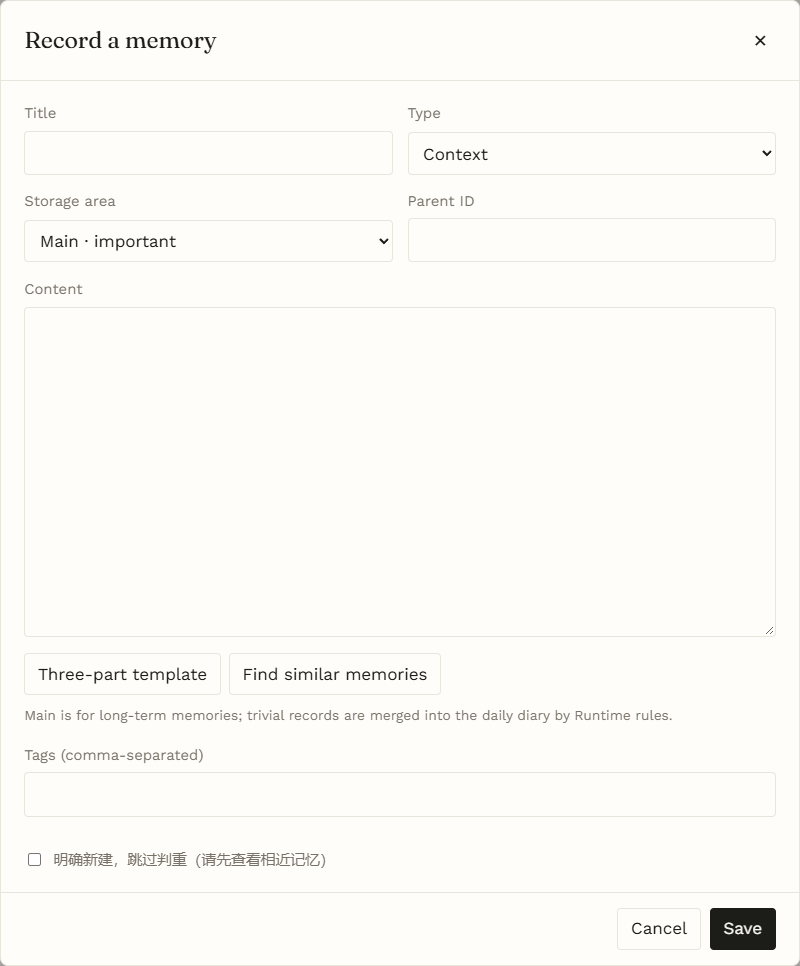
When creating a memory, set its type, storage area, parent, content and tags. Use Find similar memories to inspect candidates; bypass the duplicate check only when you intend to create a separate entry.
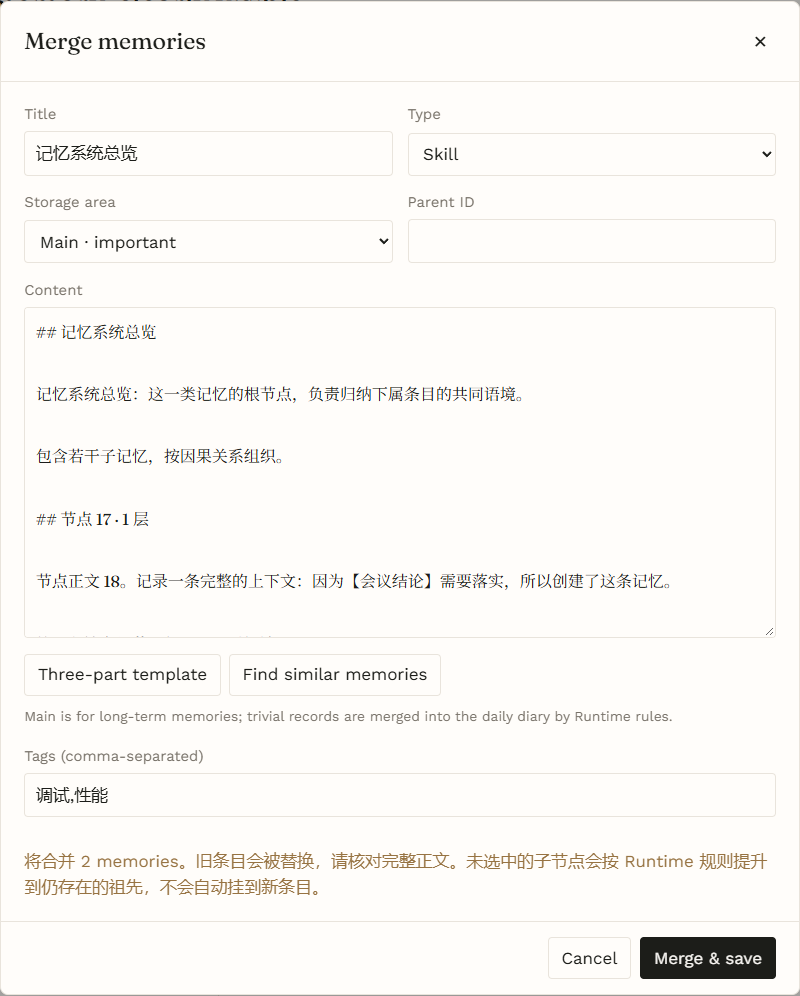
For a merge, the editor combines the selected titles and contents into a draft. Review the full content and parent before confirming. The old entries are replaced; unselected children are promoted to surviving ancestors and are not automatically attached to the new entry.
Undo covers only the latest eligible operation: creation in the main area with a created result, edits that remain in the main area, deletion or a move. It does not undo diary creation, edits across storage areas or a merge. Check the current content before using it.
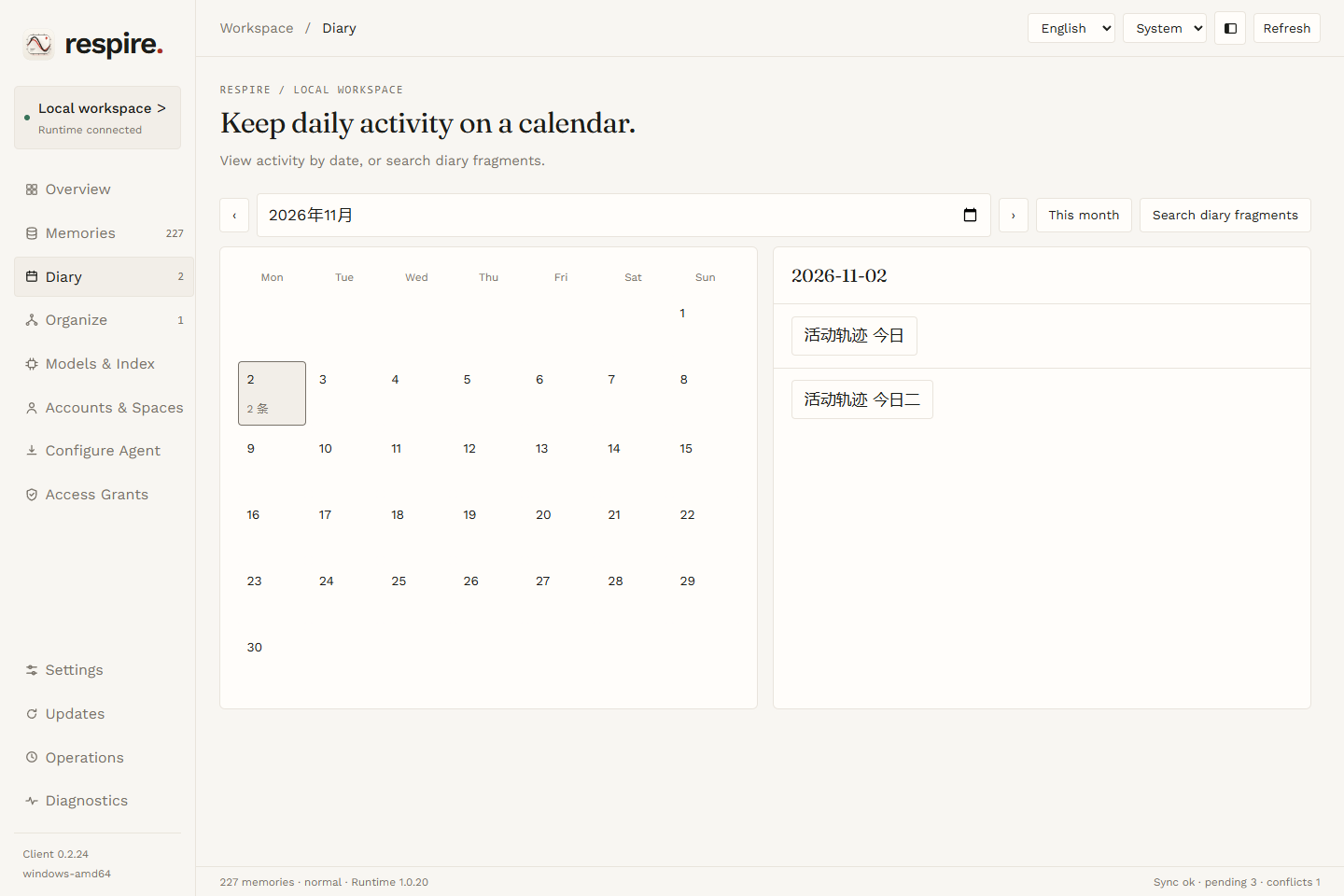
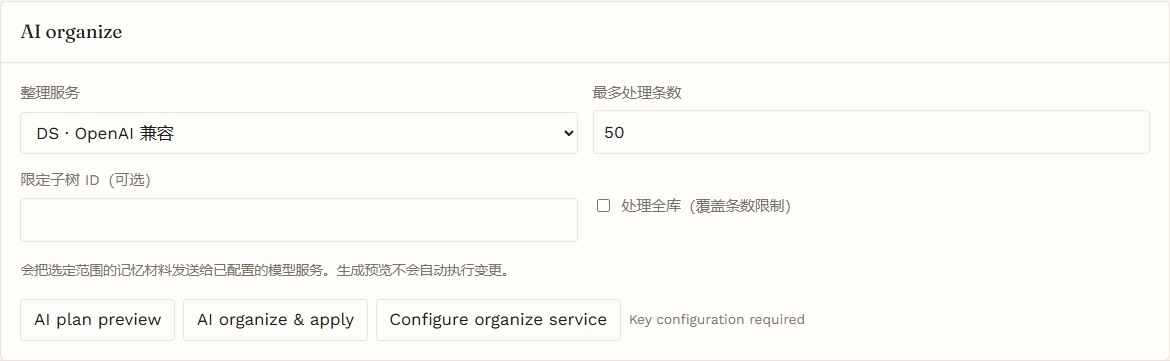
Use Diary to browse entries by month or day, or search fragments by content. Use the Organize page to review grouping, similarity and structure suggestions; preview a move plan before applying it. AI organization requires a configured service and sends the selected material to it.
Diary search is not limited to the month shown. The client requests at most 20 results and sets a character budget of 8,000. Choose Expand beside a result to read neighboring fragments; no results do not prove that the diary contains no relevant content.
After editing an organization plan, preview it again. If the library changes after a preview, generate or validate the plan again. An AI plan preview does not apply changes; AI organize & apply submits changes after confirmation.
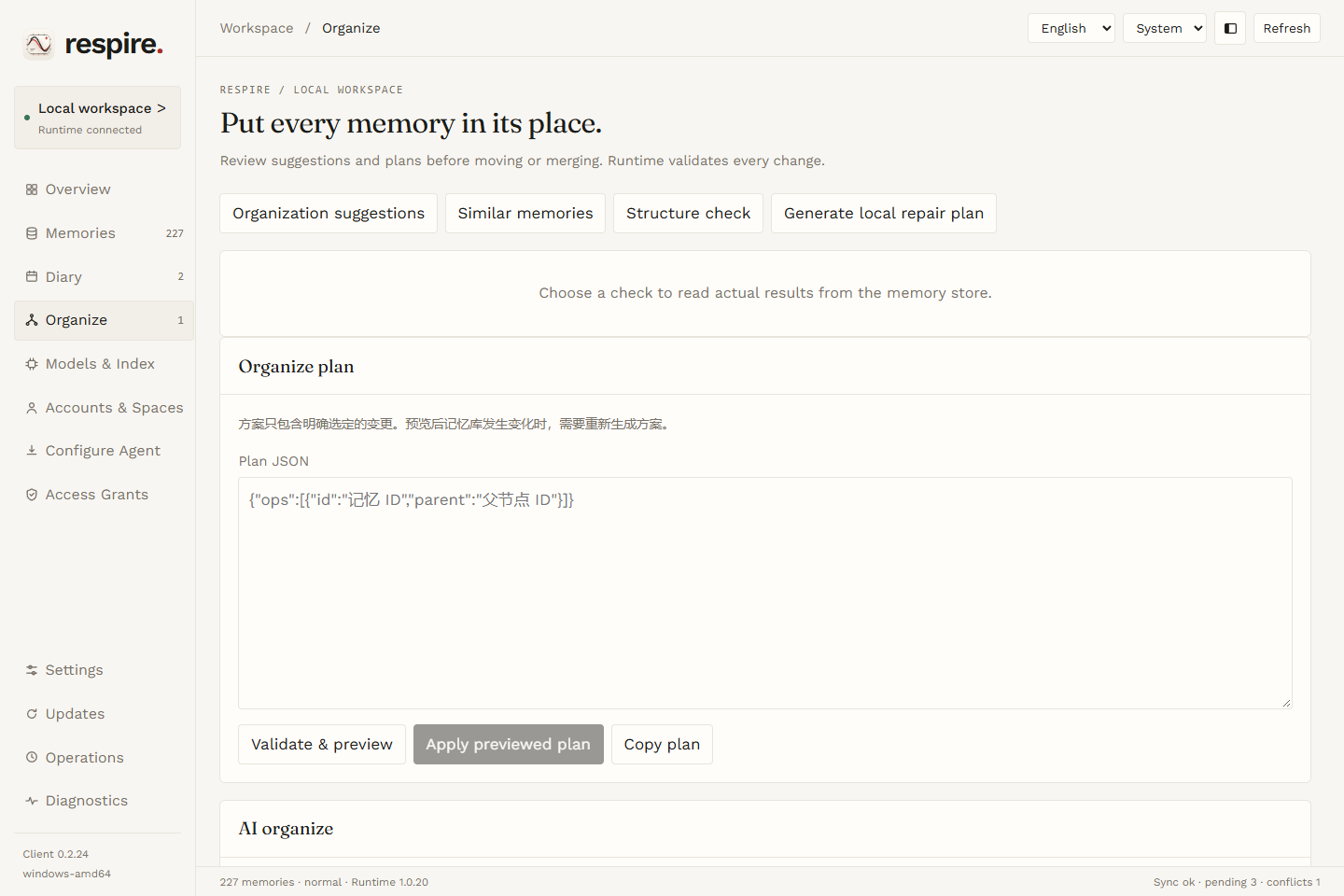
The panel below shows the AI organize scope and actions.
Models and index
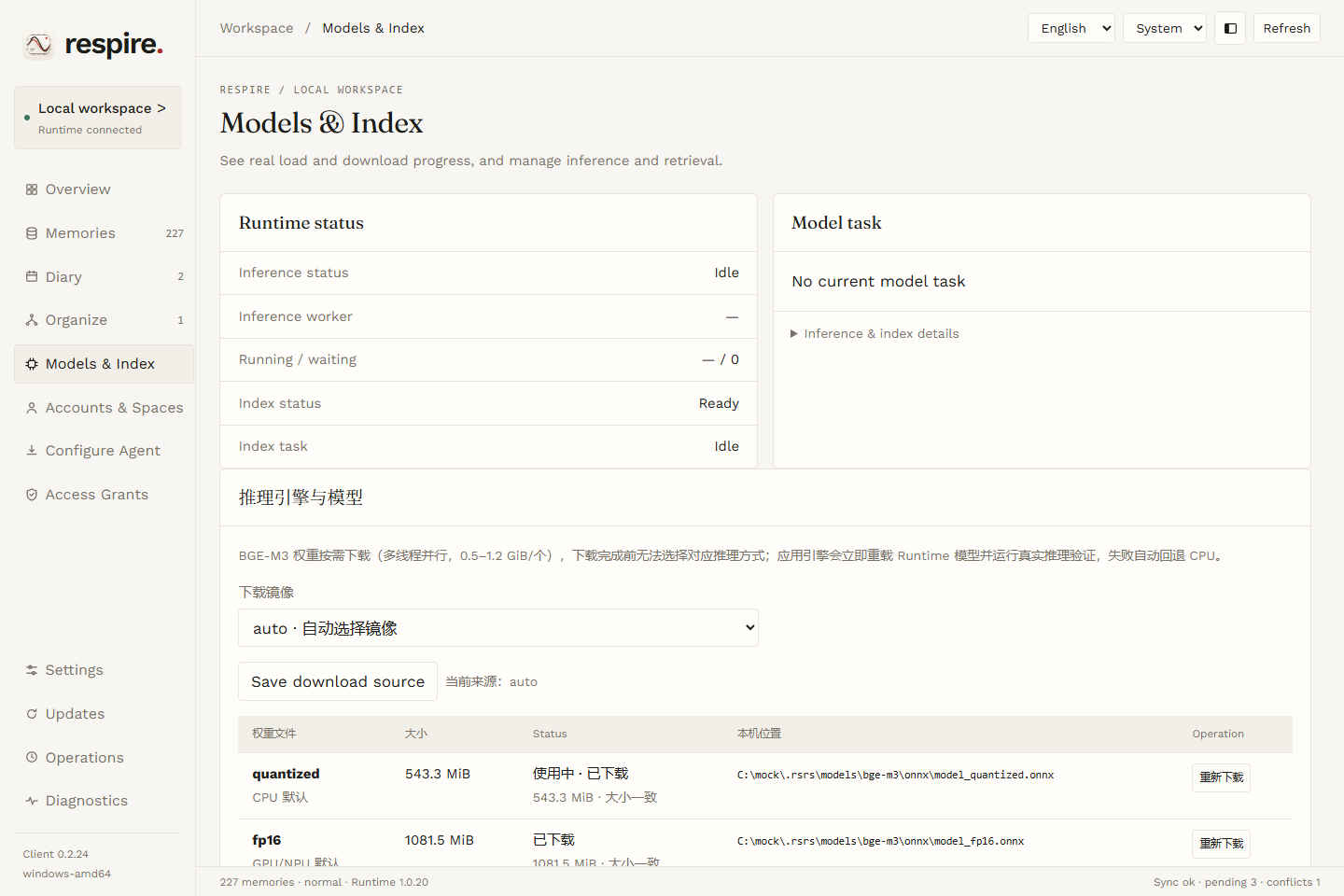
Open Models & Index to see model and index tasks. Choose a download source, prepare weights and select an available inference engine. The page also offers inference checks, index preparation, recall configuration and a nine-round benchmark. Weights are separate downloads; engine and provider availability depend on the installed Runtime and hardware.
Download the required weights before selecting and applying an engine. Applying it reloads the model and checks inference; on failure, the client falls back to CPU. The Linux interface offers only the CPU engine, and the NPU installation button is available only on Windows. The page shows status and progress while downloads or index tasks run.
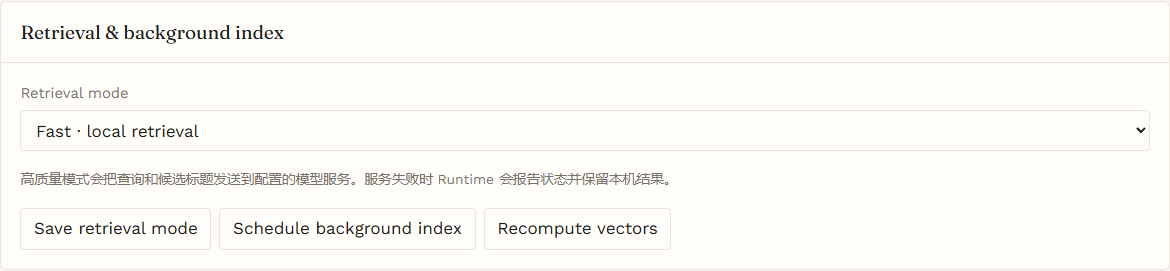
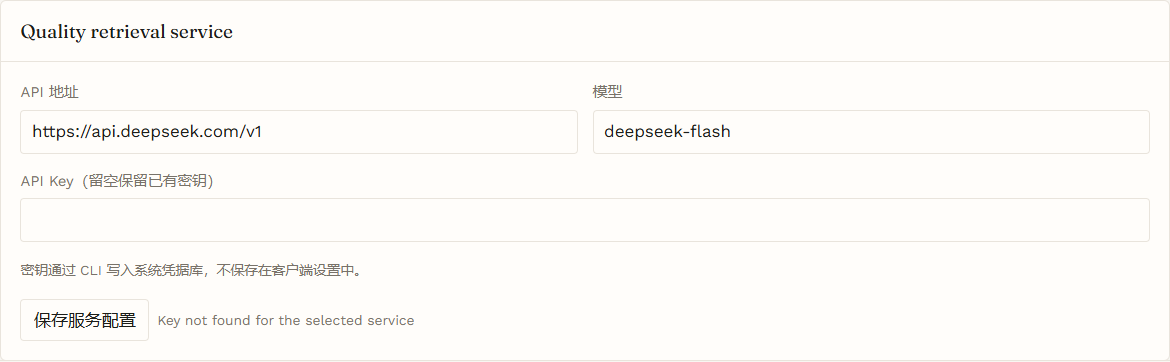
The page also configures the quality-recall service, switches recall mode, schedules background indexing and recalculates vectors. A benchmark can stop after its current request returns. Uninstalling models removes the model files; download them again when needed.
The client uses parallel downloads for the baseline model and individual weights. Once baseline files are ready, the models page attempts to schedule indexing; check the result shown on the page. Cancel current task targets a model task reported by the Runtime and should not be assumed to cancel the client download.
After an interrupted download, partial chunks may remain in the model directory and use disk space. The client attempts to resume them on retry, then checks file size and SHA-256. Parallel downloads require the source to support range requests. If a download fails, inspect the error on the page and check the download source.
In Client 2 0.2.25, a task can still report an error after an earlier source fails and a later source succeeds. If this happens, refresh the models page and check the file status before deciding whether to retry. The page status does not replace independent verification.
The panels below show retrieval, indexing and the quality-recall service. The address and model are examples.
Accounts and spaces
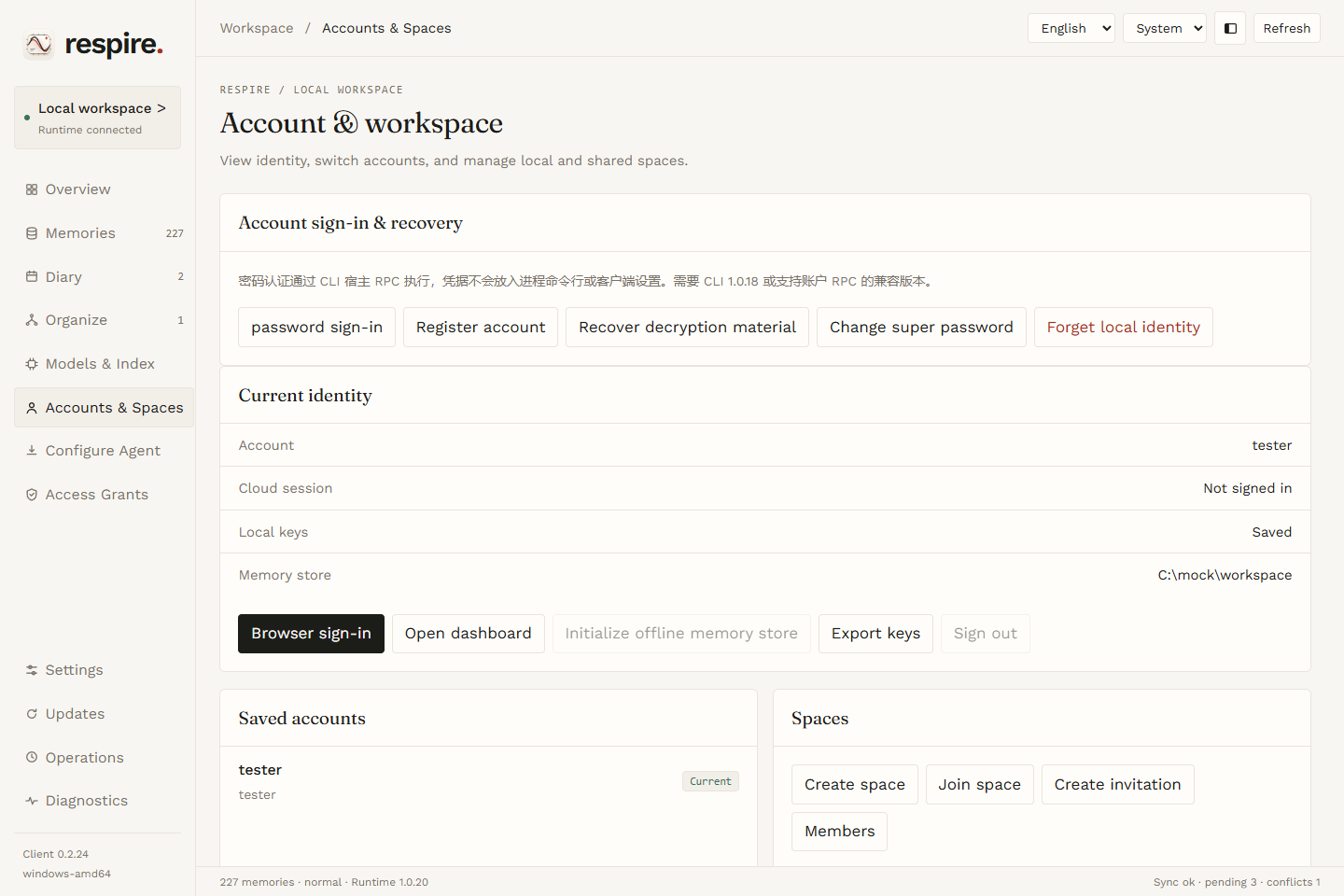
Open Accounts & Spaces to sign in, recover keys or initialize a new offline library. The same page manages saved accounts, sync, spaces, invitations and members. Keep recovery material and invitations private. Removing a space removes its corresponding local space and data.
Recover decryption material requires kdf_salt, wrapped_urk and urk_nonce, plus the super password. For legacy material, the original login password and Account Secret can also be used. Before submitting, confirm the material belongs to the library you intend to open.
Change super password rewraps existing keys; it cannot recover a lost decryption key. Save the new recovery material securely afterward. The old recovery code no longer applies to the new key wrapping.
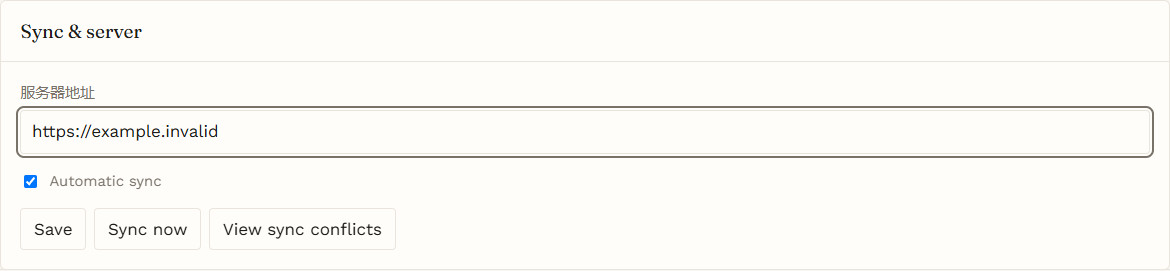
The panel below shows sync and server settings. The address is an example.
Connect agents and manage access
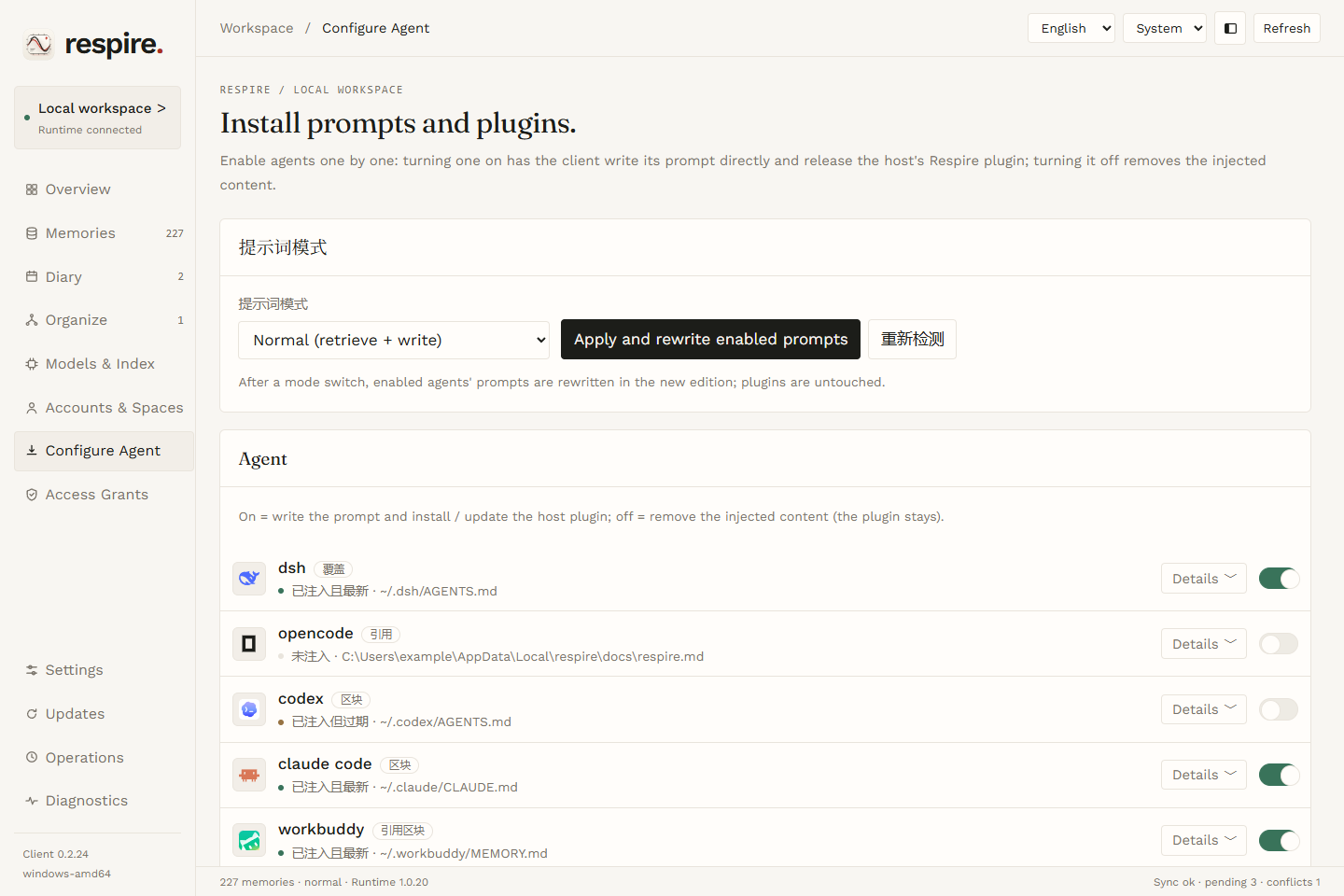
On Configure Agent, inspect the target, select an instruction mode and enable an agent. Review the result, then finish any host-specific installation or hook approval in the agent. Disabling an agent removes injected instructions but keeps the plugin. Changing the mode rewrites instructions for enabled agents. Review the DSH path and back it up before injection. The plugin pages explain each host.
Choose Details beside an agent to inspect its destination and plugin information. Enabling an agent can change the destination file immediately, so review existing content first. The Configure Agent page in client 0.2.25 does not offer a Codex file preview.
Some targets are initially collapsed; choose Show … more to see them. Instruction modes are normal, read-only and off. After selecting one, choose Apply and rewrite enabled prompts.
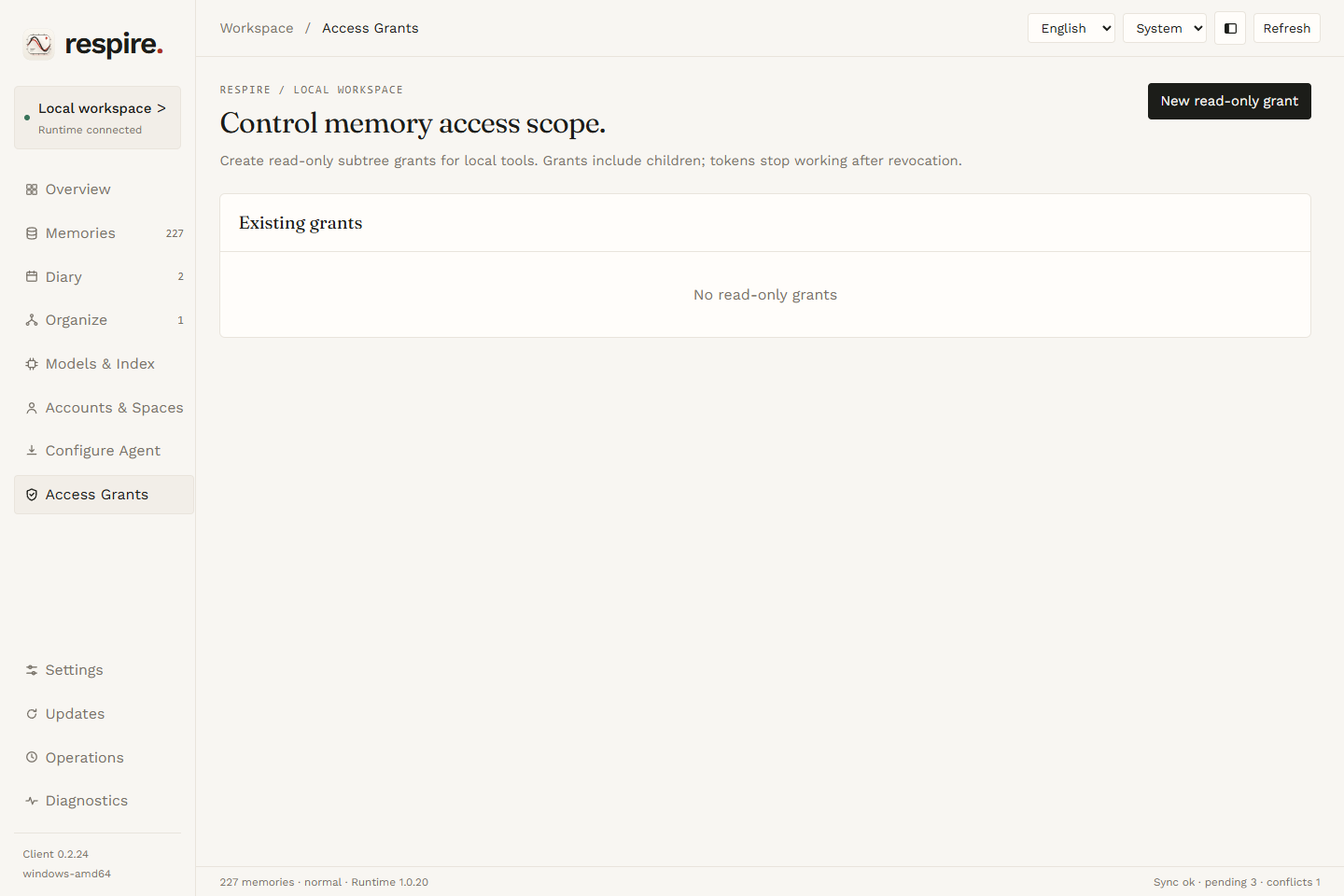
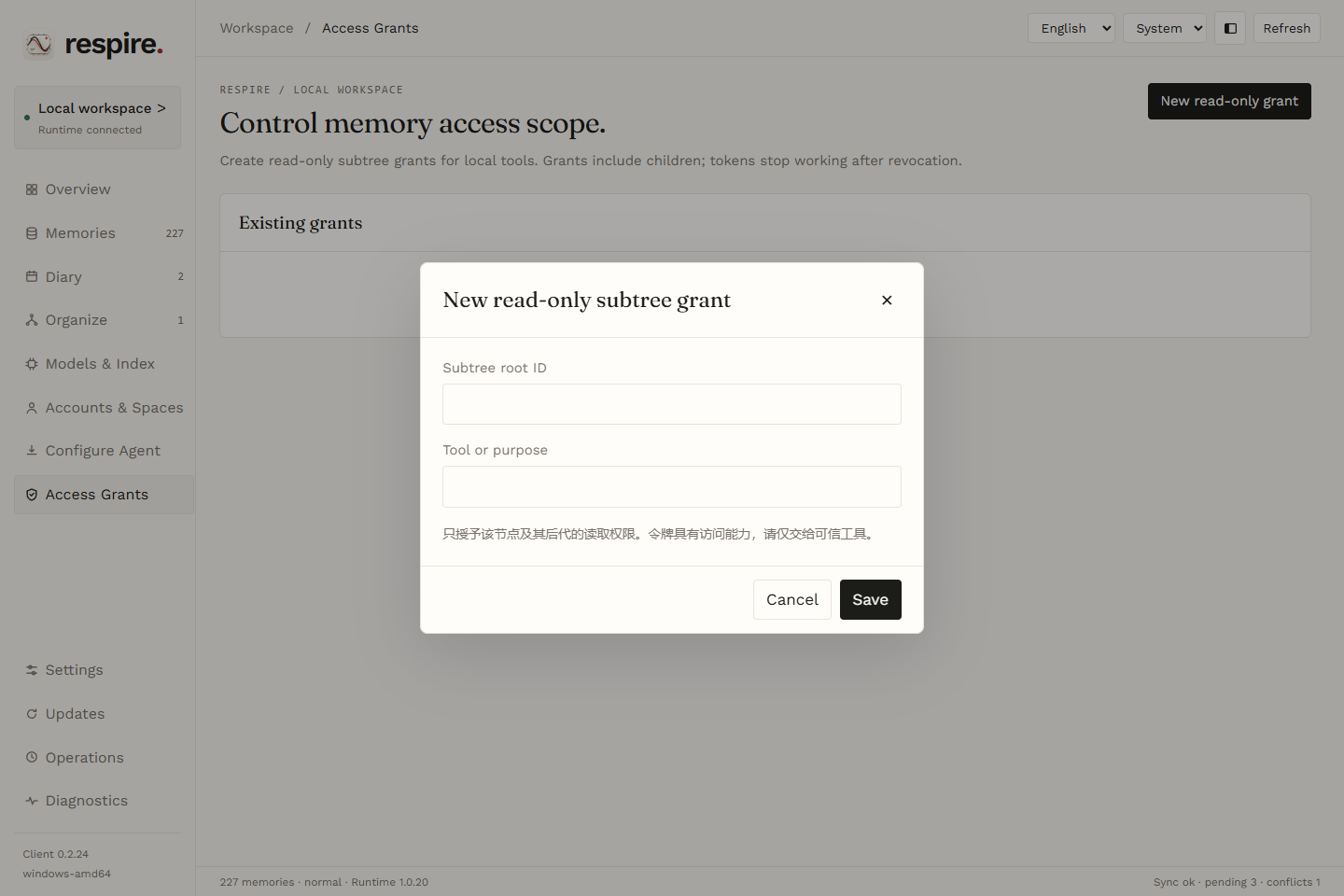
Use Access Grants to inspect, create or revoke read-only access to a memory subtree, including inherited grants. An invitation or grant can convey access to data; share it only with trusted recipients.
To create a grant, enter the subtree root ID and its tool or purpose. The grant includes descendants; after revocation, tools using that token can no longer read the granted scope.
After creation, the client displays the grant material. Store the token securely and share it only with trusted tools. To inspect direct and inherited grants, select a memory on the Memories page and choose View access grants. Moving a memory can change its inherited access; check again after a move.
Settings, updates and diagnostics
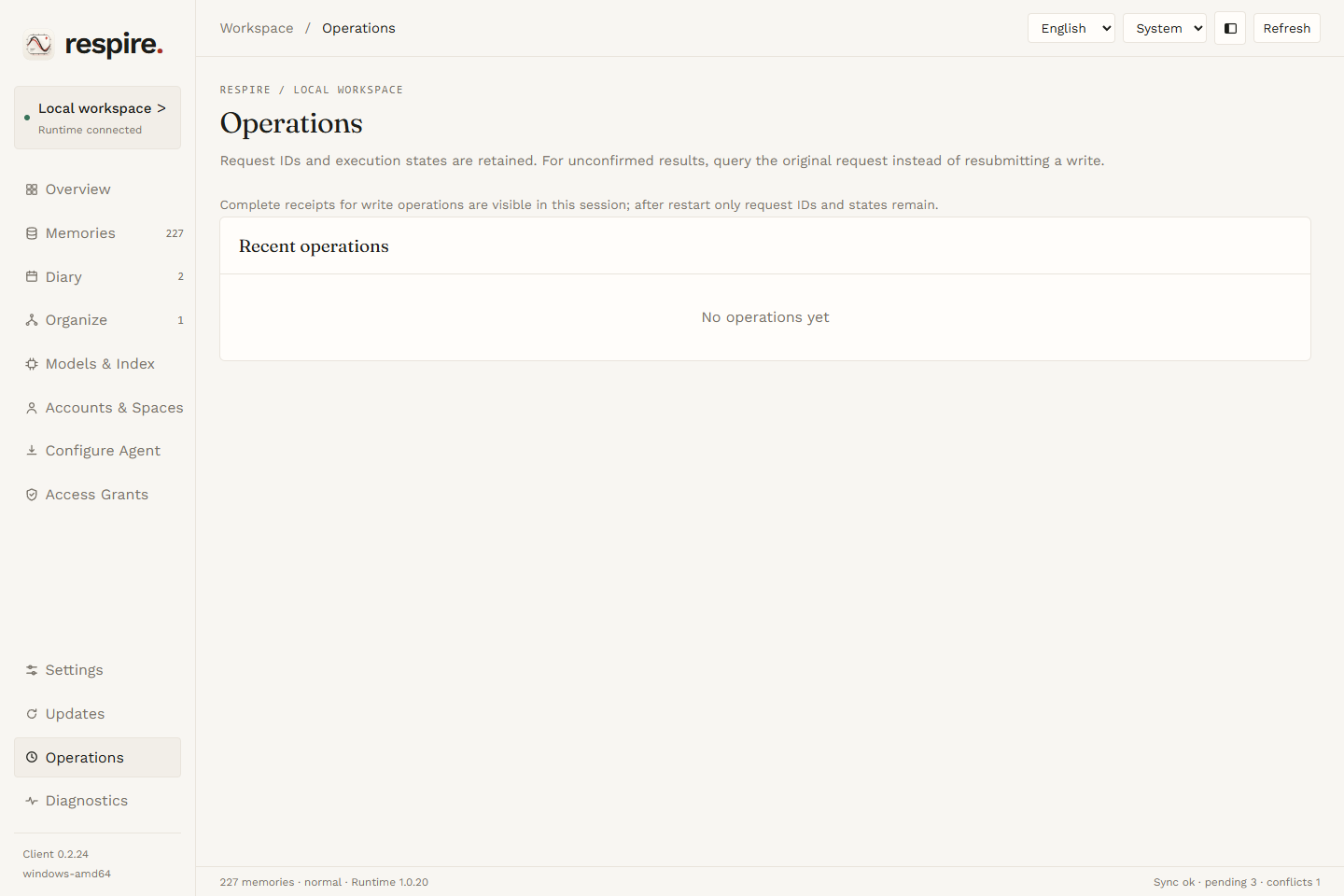
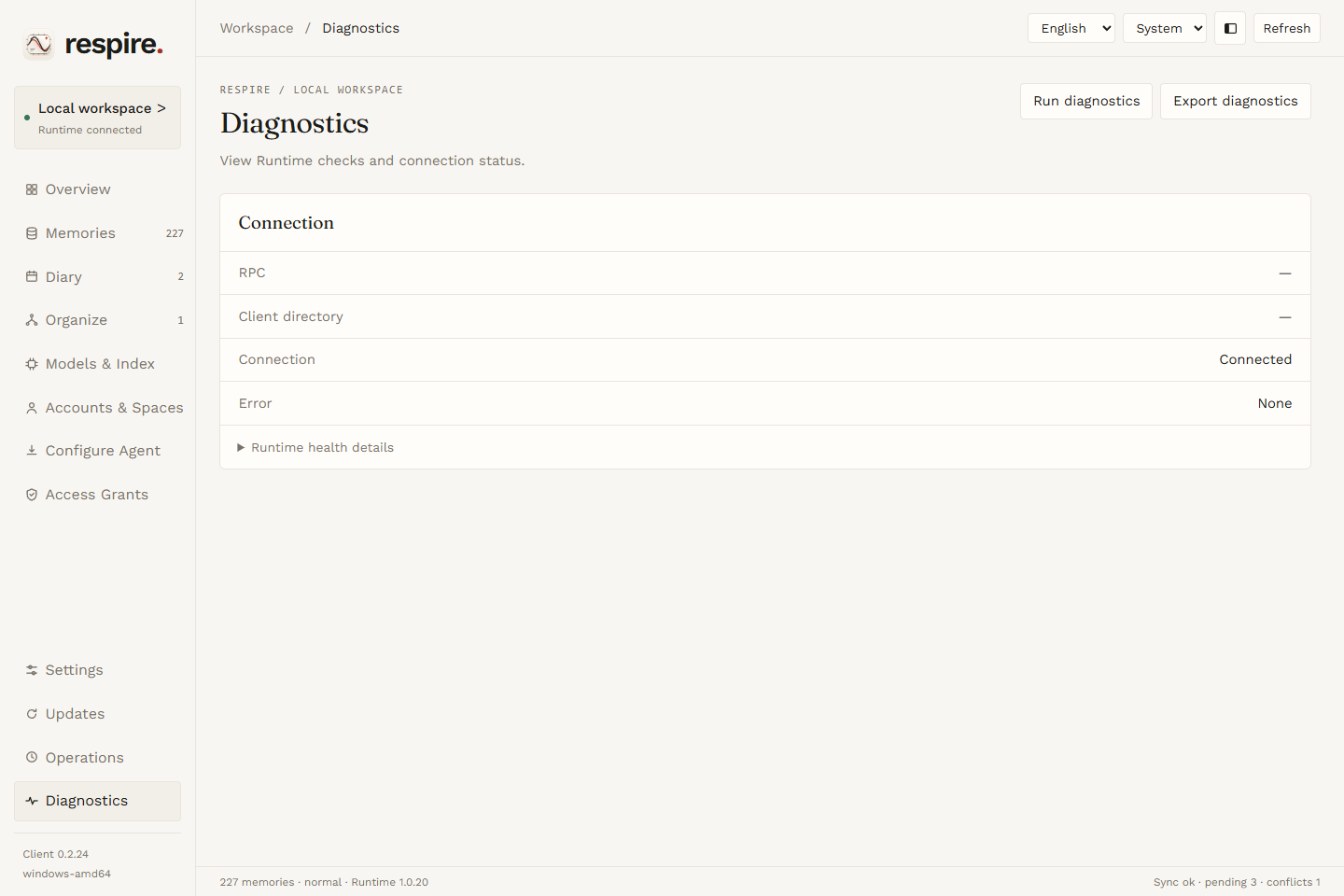
Use Settings for appearance, language, startup, Runtime connection and data import or export. Updates manages the desktop and CLI separately; inspect their channels and download status before applying changes. Operations lists request IDs and session receipts, while Diagnostics shows connection health and can export diagnostics. Check diagnostic output before sharing it.
If a write shows an unconfirmed result, choose Query original request in Operations, then check the corresponding page. Full receipts are not retained after the client restarts. In Diagnostics, you can run a check or choose a destination for an exported report.
Settings also controls workspace mode, diary recording, fonts and reading typography. The interface language and CLI display language are configured separately. A client-settings backup does not contain memory keys; save memory exports and database backups separately.
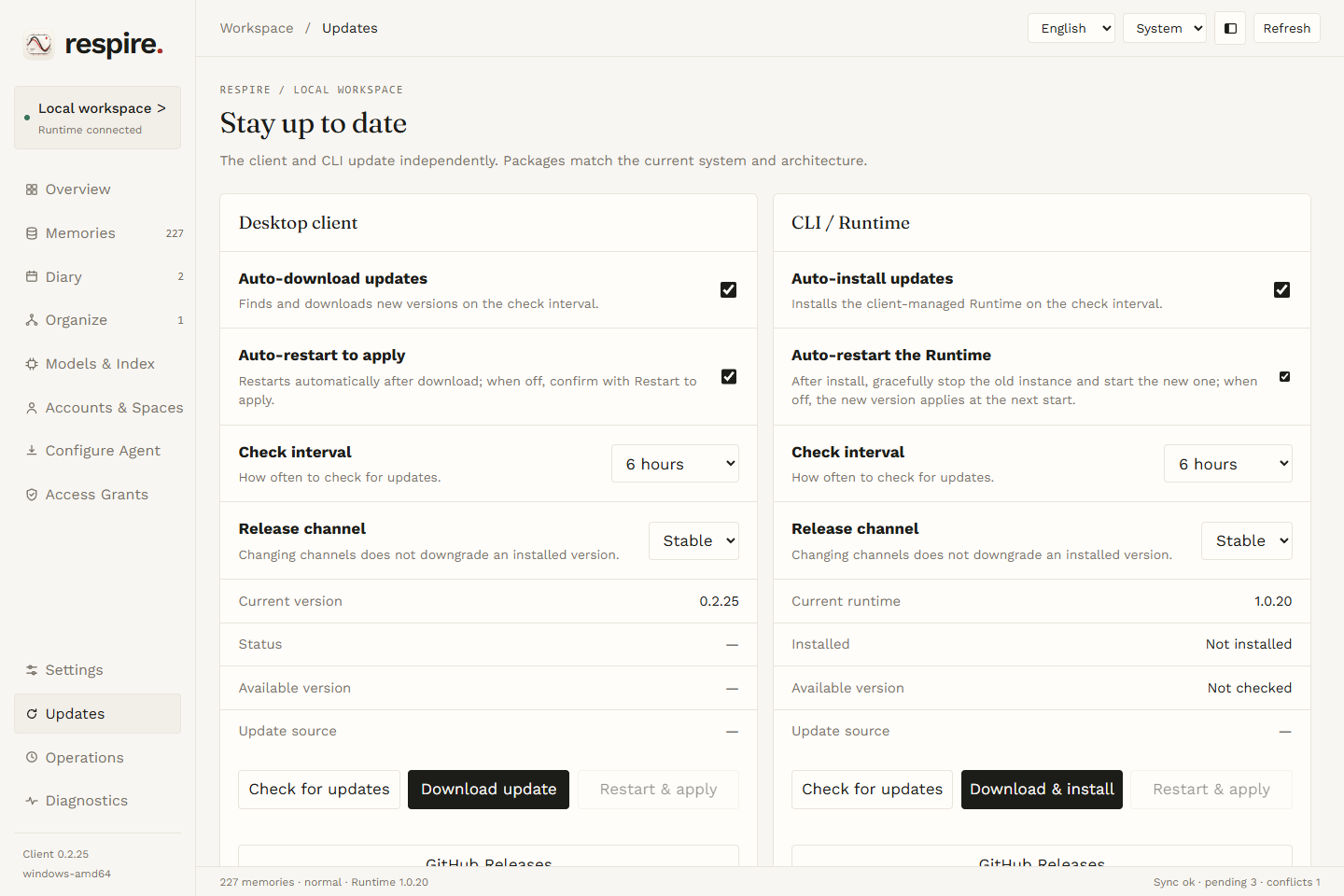
On Updates, configure automatic client downloads and restarts separately from automatic installation and restart of the client-managed Runtime. Choose a check interval for each independently. If automatic client restart is off, choose Restart & apply in the desktop section after downloading; client updates are not applied while a business operation is running.
If automatic Runtime restart is off, the installed version applies the next time Runtime starts. When available, you can also choose Restart & apply in the CLI / Runtime section. Check the running version shown on the page. Choose the desktop and CLI / Runtime release channels separately; changing channels does not automatically downgrade an installed version.
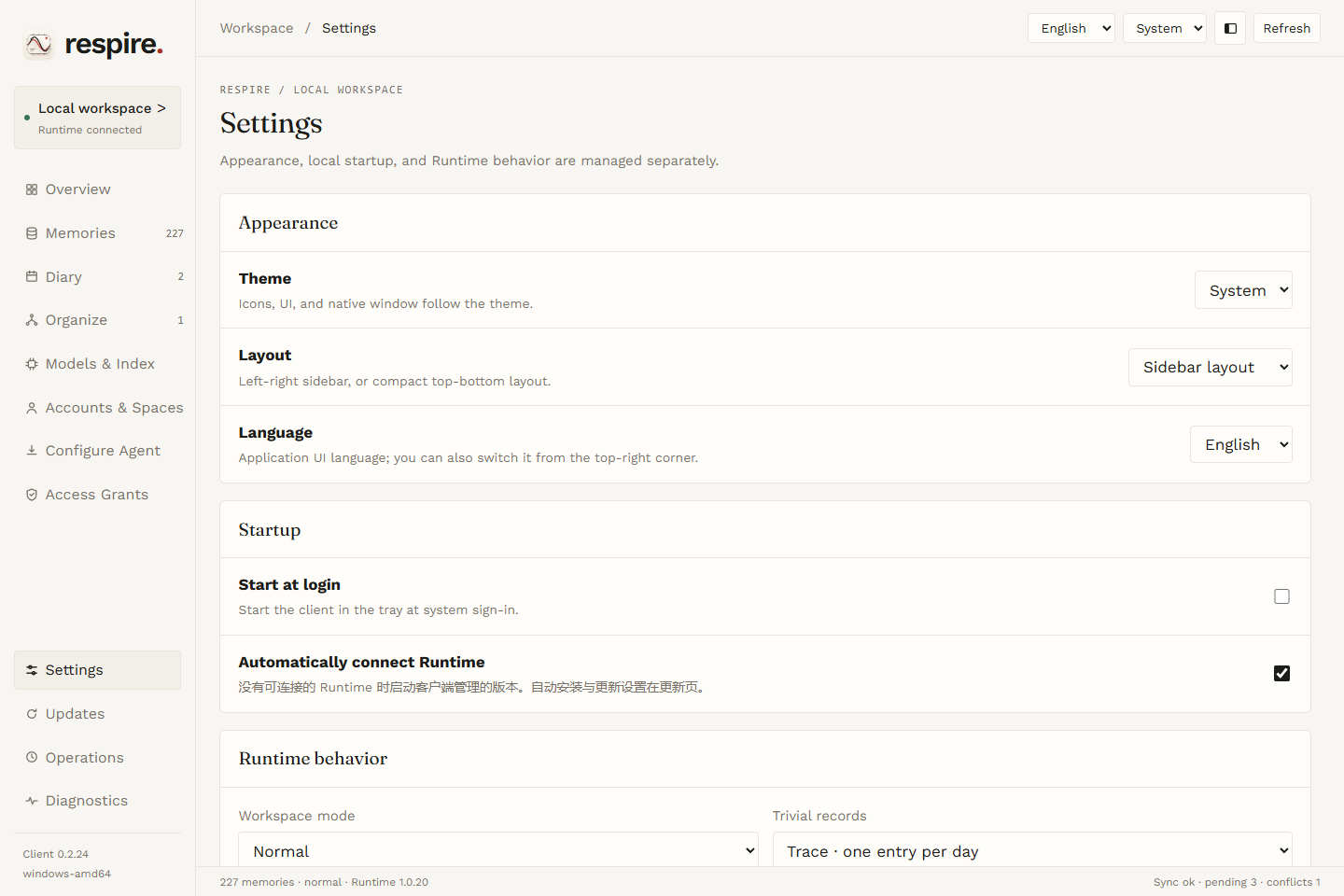
The panel below shows data import and backup actions. Memory exports contain plaintext; store them securely.
When importing shared material, the client shows a preview and submits the import only after you confirm. Importing client settings overwrites the current settings; that operation does not change memory data.

Data and failure boundaries
JSON memory exports and shared materials contain plaintext. Key exports and recovery materials can unlock data; space invitations contain access and decryption capability. Protect these files and share them only with trusted recipients. Removing a space deletes its corresponding local space and data. Forgetting local identity removes the session and decryption material but retains encrypted memories; unlocking again requires recovery material. Changing the data directory keeps the old directory and does not copy memories or keys; the new directory needs its own session and keys. Normal memory deletion can propagate through sync; permanent ciphertext purge cannot be undone. Merging replaces source entries, while unselected children are promoted according to Runtime rules.
AI organization sends selected memory material to the configured service. Quality recall sends the query and candidate titles. Service keys are passed to the CLI through standard input for storage in the system credential store. Diagnostic exports can contain local paths, operation errors and full session receipts; inspect them before sharing.
A lost write receipt does not prove that the write failed. The client keeps its request ID and queries the original request rather than replaying it. Full receipts are kept during the session; after restart only request metadata remains. An older Runtime or CLI may lack features, and missing release assets are reported rather than replaced with another architecture.
After switching the data directory, the page may report that the setting was saved but the Runtime switch is unconfirmed. Refresh Diagnostics and check the current directory before taking further action; do not resubmit the request.
Packaging boundary
Windows uses an executable and requires WebView2. The macOS app bundle requires macOS 12 or later. Linux requires GTK 3, WebKitGTK 4.1, X11 client libraries and system libraries compatible with Ubuntu 22.04; it does not run directly on Alpine/musl. Desktop and CLI/native runtime are distributed separately. Verify platform prerequisites and release assets; the client does not bundle model weights. See Windows packaging and client integration.